
Office
How to Find and Remove Duplicate Values in Excel
Step-by-step ways to find duplicate values in Excel with Conditional Formatting, remove duplicate rows with Remove Duplicates, and clean Excel or CSV data in the browser.
If the same name, email, product code, or order number appears more than once in Excel, you can highlight those duplicates first—or delete the extra rows.
The fastest checks:
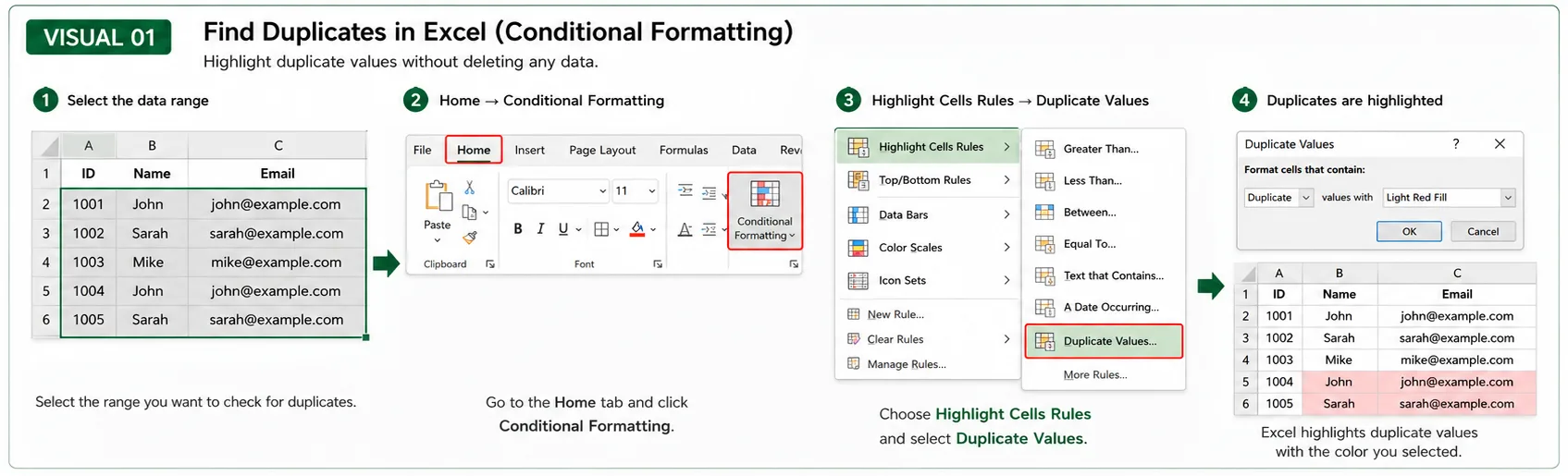
Find duplicates: Home → Conditional Formatting → Highlight Cells Rules → Duplicate Values
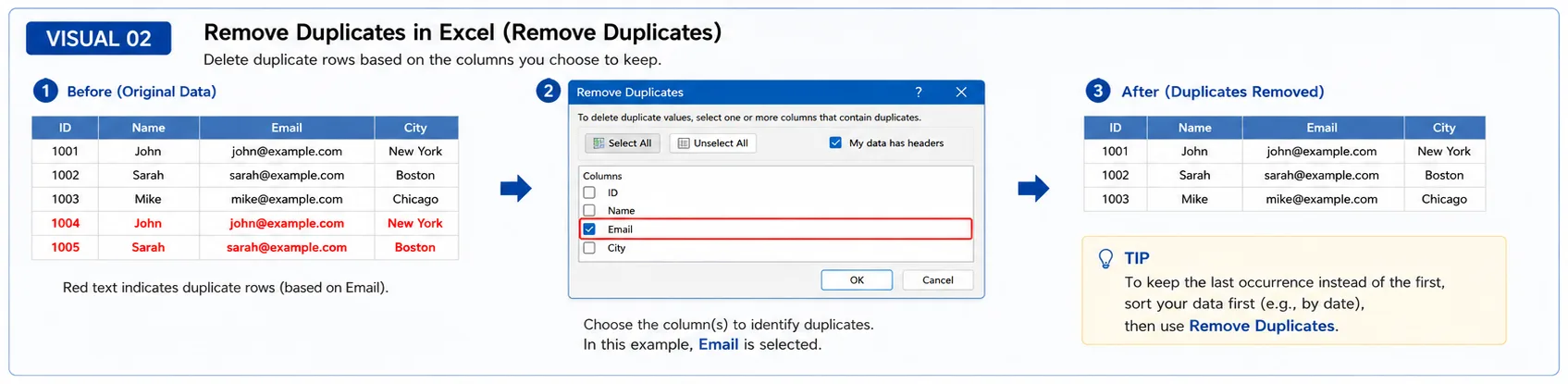
Remove duplicates: Data → Remove Duplicates
For large sheets or CSV files, you can also clean duplicates in the browser with NEXNARA Data Cleaner & Filter.
Find duplicate values in Excel
If you want to see which values repeat before deleting anything, use Conditional Formatting.
Example table:
| Customer ID | Name | |
|---|---|---|
| 1001 | John | john@example.com |
| 1002 | Sarah | sarah@example.com |
| 1003 | Mike | mike@example.com |
| 1004 | John | john@example.com |
Here, John and john@example.com appear twice.
Menu path:
Excel colors the matching cells. Nothing is deleted—you only see where duplicates sit.
Remove duplicate values in Excel
When you are ready to delete extra rows, select the data range, then open Remove Duplicates.
In the dialog, choose which columns Excel should use to decide that two rows are the same. That column choice changes the result.
Duplicate detection depends on the columns you select.
Example:
Name | City
John | New York
John | Chicago
Sarah | Boston
If you check only Name, both John rows can count as duplicates.
If you check Name and City, John + New York and John + Chicago are different combinations—so they are not duplicates.
Confirm the column list before you run Remove Duplicates.
For important workbooks, copy the file first. Remove Duplicates deletes rows from the sheet. Right after the step, Ctrl+Z can undo it—but a backup is safer.
Clean Excel or CSV duplicates online
If you prefer to work in the browser—or you have a CSV/TSV export—use Data Cleaner & Filter on NEXNARA.
You can open Excel, CSV, or TSV, or paste a table. Then find duplicate rows on selected columns, keep the first match, keep the last match, or remove every duplicated row. The same workspace also supports filtering, sorting, trimming, find & replace, and export back to CSV, XLSX, or TSV.
Parsing and cleaning run in your browser. NEXNARA does not upload the spreadsheet to a server.
Keep only one copy of each duplicate?
Most people keep the first matching row. For time-ordered data where the newest record should stay, keep the last row instead. Data Cleaner supports Keep first, Keep last, and Remove all duplicates.
FAQ
Can I find duplicates without deleting them?
Yes. Use Home → Conditional Formatting → Highlight Cells Rules → Duplicate Values. Excel only highlights cells.
Can I undo Remove Duplicates?
Often yes, with Ctrl+Z right after the action. Still back up important files before you remove rows.
Can I treat rows as duplicates only when several columns match?
Yes. In Remove Duplicates, select every column that must match together. Excel compares the combination of those columns.
Can I remove duplicates from a CSV file?
Yes. Open the CSV in Excel and use Remove Duplicates, or clean it in NEXNARA Data Cleaner.
Are 00123 and 123 the same value?
They can become the same if Excel stores them as numbers and drops leading zeros. Keep product codes, ZIP codes, and employee IDs as text when leading zeros matter.